FROM SPREADSHEETS TO SALES FOLLOW-UP
Your list arrives. Your work continues.
Central sales lists already contain useful information. Bring it into the CRM carefully, check what each file adds and preserve the follow-up your team has already recorded.
No account needed · Fictional demo data
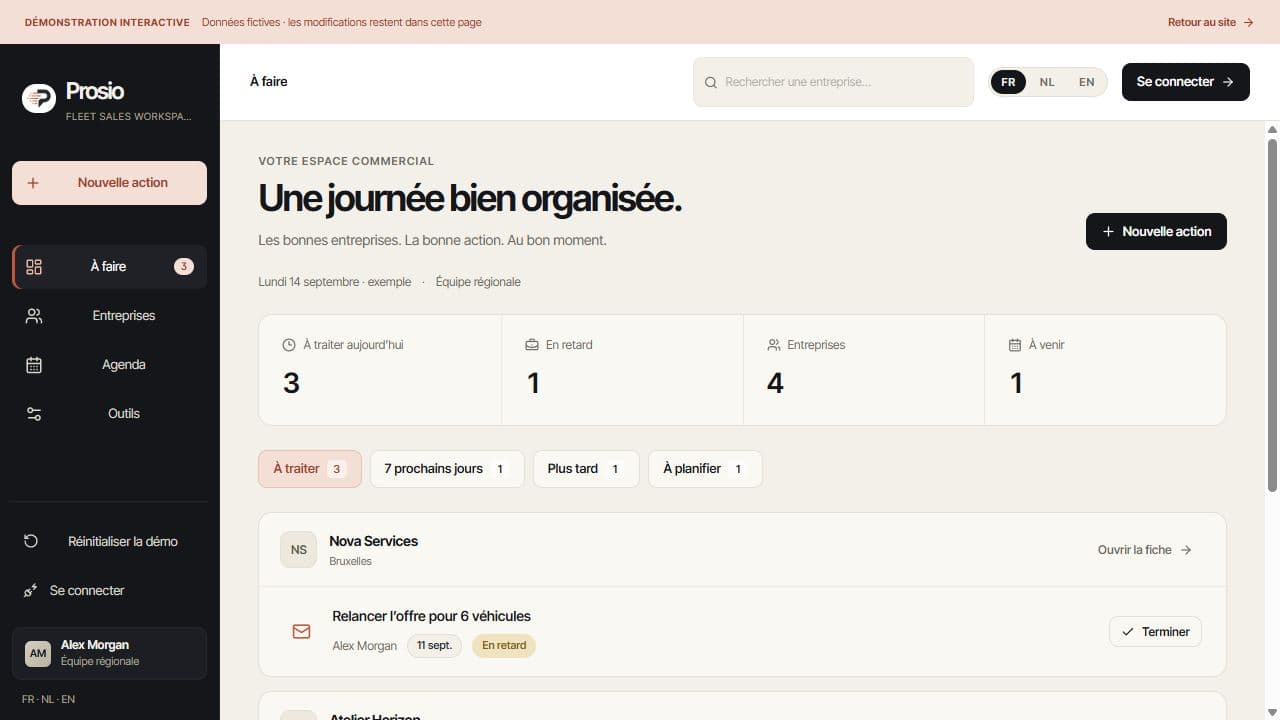
Start with the data you actually have.
Prosio supports Excel and CSV files. Company names, contact details, VAT numbers, fleet data and quote references can structure the import according to the columns available.
- Choose the destination and import type.
- Check column mapping, dates and amounts.
- Keep unknown values unknown instead of guessing.
Review before adding records.
The preview separates recognised rows, duplicates and detected problems. Multiple quote rows can belong to one company and should be reviewed in that context.
- Examine the import preview before confirming.
- Check company identities and quote references.
- Review ambiguous or incomplete rows separately.
Prepare for recurring files.
Depending on the selected mode, you can skip duplicates, complete empty fields or reconcile quotes by reference. Availability depends on your workspace configuration; conflicts remain visible.
- Choose an approach suited to each incoming file.
- Preserve manually changed values when reconciling.
- Find the result in the import history.
Your practical questions.
Do we need to retype the spreadsheet?
The import uses recognised columns. Missing, ambiguous or unsupported information needs review instead of automatic inference.
What happens when a company appears again?
The selected import mode determines the behaviour. Review duplicates and available completion or reconciliation proposals before confirming.
Is this a direct Salesforce connection?
No. An exported file can be a starting point after checking its format. Direct synchronisation is a separate integration to define.
See how it works.
Explore accounts and next actions with fictional data, then prepare your pilot with us.